Connect your assistant
Every library has its own MCP server. Add it to Claude, ChatGPT or any assistant that speaks MCP, sign in once, and the assistant can search the shelf, list what you own and arrange loans for you. It takes about a minute.
-
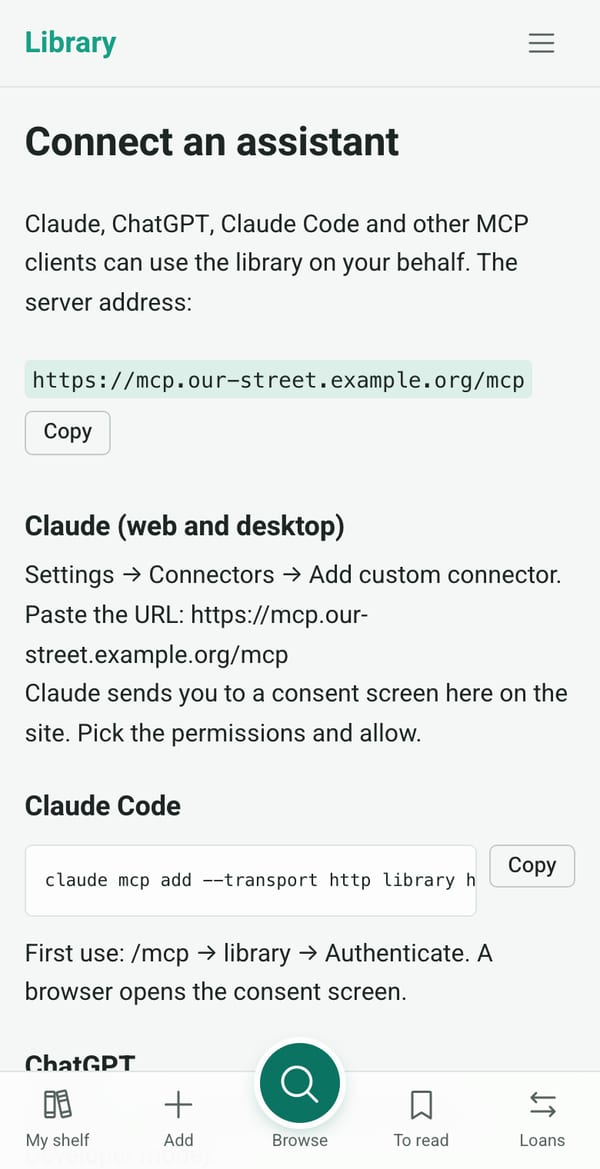
Add your library
In your library, open My account, then Connect an assistant. It shows your library's MCP address, such as
https://mcp.our-street.example.org/mcp, and how to add it to each assistant.In Claude: Settings → Connectors → Add custom connector, then paste the address.
-
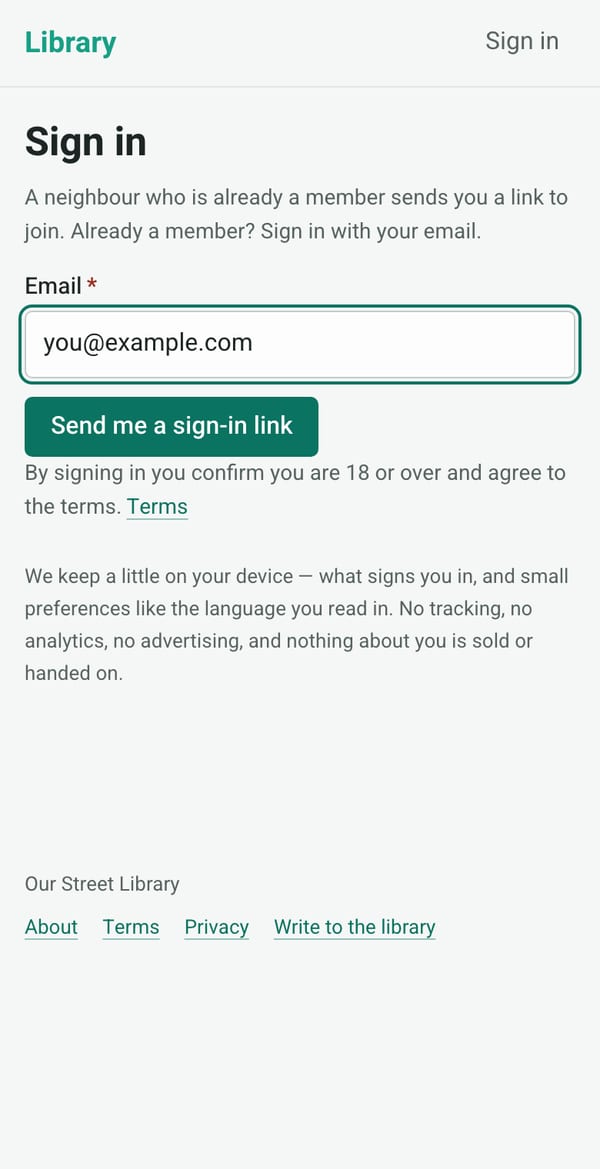
Sign in
Your assistant opens your library's sign-in page in a window of its own. Enter the email you use for the library, and ask for a sign-in link.
-
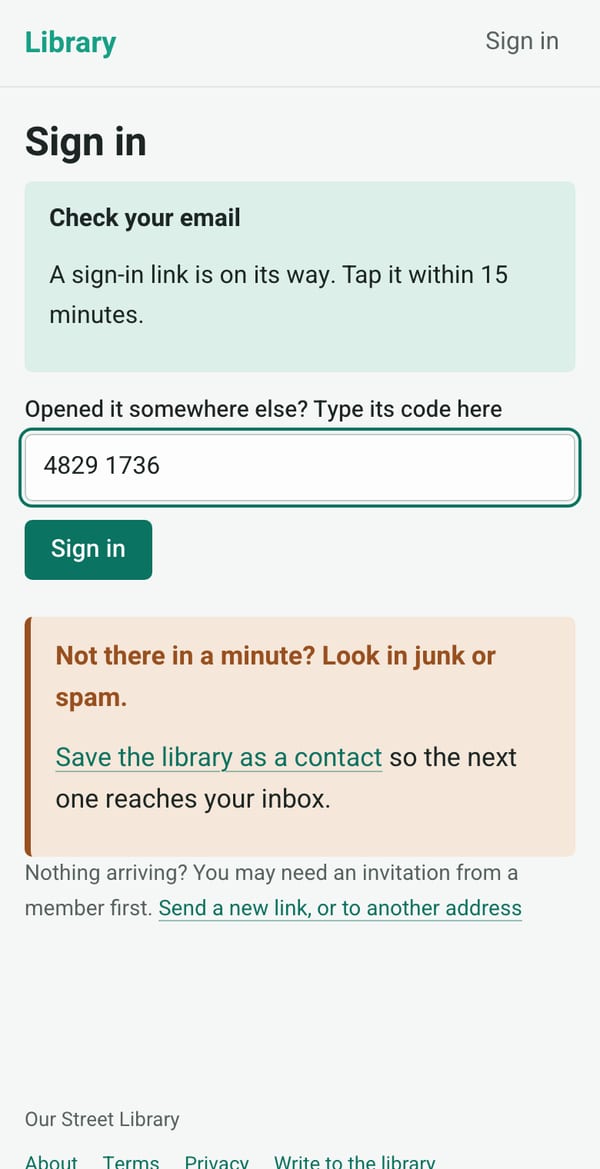
Type the code
The email has a link and an eight-digit code. A link opens in your phone's browser or mail app, not in the assistant's window, so type the code there instead.
The code works only in the window that asked for it, and only once.
-
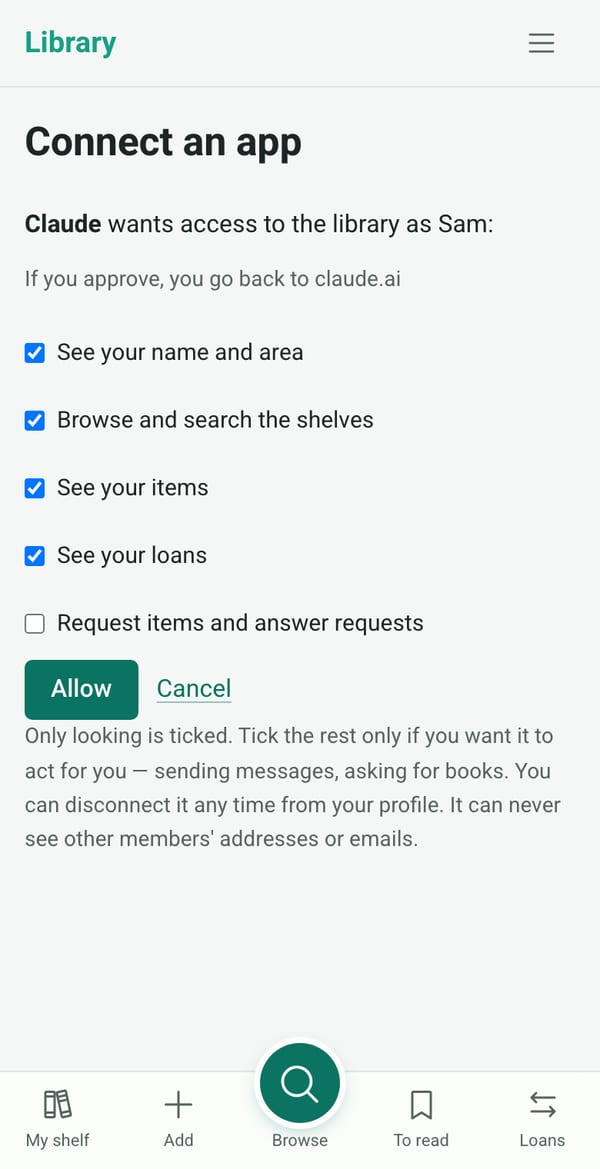
Choose what it may do
The library asks what the assistant may do. Looking is ticked; acting for you, like asking for a book or answering a request, is yours to tick. Allow, and you are back in your assistant.
Moderators see one more: Moderator actions. Tick it, and the assistant can look after the library for you too.


Then just ask
In your own words, the way you would ask a neighbour. It checks with you before it writes to anyone.
-
“Is anyone lending a ladder this weekend?”
It searches the shelf and offers to ask the owner.
-
“Add these three books to my shelf.”
With a photo of their spines, or just their titles.
-
“Accept Alex's request and say Saturday morning suits me.”
It answers the request and writes to the borrower.
-
“Fix the author on this one and tag it as poetry.”
For moderators who allowed Moderator actions: it corrects any item's details and cover, and adds, renames and tidies the library's tags.
-
Change your mind any time
Your connected assistants are listed under My account, each with a button to disconnect it. An assistant never sees other members' addresses or emails.